Note
Access to this page requires authorization. You can try signing in or changing directories.
Access to this page requires authorization. You can try changing directories.
When your add-in needs more than strings, numbers, and booleans, use Excel data types. Data types let you return enhanced values such as formatted dates, entity cards, linked records, and web images while still supporting worksheet calculations.
This article explains the valuesAsJson API that powers data types and shows when to use the main cell value types. For a feature overview, see Overview of data types in Excel add-ins.
To try these concepts right away, open Script Lab in Excel and browse the Data types samples in the Samples library.
The valuesAsJson property
The valuesAsJson property is the main API for reading and writing Excel data types. The singular valueAsJson property on NamedItem serves the same purpose for a single named item.
valuesAsJson expands on properties such as Range.values. The values property only returns one of the four basic cell value types: string, number, boolean, or error. By contrast, valuesAsJson returns an expanded JSON structure for those basic types and for data types such as formatted numbers, entities, and web images.
The following objects expose valuesAsJson.
- NamedItem as
valueAsJson - NamedItemArrayValues
- Range
- RangeView
- TableColumn
- TableRow
Note
Some cell values change based on a user's locale. Use valuesAsJsonLocal when you need localized values. It's available on the same objects as valuesAsJson.
Cell values
valuesAsJson returns the CellValue type alias. CellValue is a union of multiple cell value types.
The types most add-ins use are:
- DoubleCellValue for formatted numbers.
- EntityCellValue for rich records and cards.
- LinkedEntityCellValue for externally sourced records.
- WebImageCellValue for images stored in cells or entity properties.
The complete CellValue union includes the following types.
- ArrayCellValue
- BooleanCellValue
- DoubleCellValue
- EmptyCellValue
- EntityCellValue
- ErrorCellValue
- ExternalCodeServiceObjectCellValue
- FunctionCellValue
- LinkedEntityCellValue
- LocalImageCellValue
- ReferenceCellValue
- StringCellValue
- ValueTypeNotAvailableCellValue
- WebImageCellValue
CellValue is an intersection with CellValueExtraProperties. CellValueExtraProperties isn't a data type by itself. It adds properties that help you control how cell values are overwritten.
JSON schema
Each value that valuesAsJson returns uses a JSON metadata schema designed for that cell value type. Although each type has its own properties, all schemas share type, basicType, and basicValue.
type defines the CellValueType. basicType is read-only and provides the fallback type when the data type isn't supported or is formatted incorrectly. basicValue matches the value returned by the values property and acts as the fallback when calculations encounter incompatible scenarios, such as an older version of Excel that doesn't support data types. basicValue is read-only for ArrayCellValue, EntityCellValue, LinkedEntityCellValue, and WebImageCellValue.
Beyond those shared fields, each *CellValue type has its own schema. For example, WebImageCellValue includes altText and attribution, while EntityCellValue includes properties and text.
The next sections show common patterns for formatted numbers, basic values with extra properties, entity values, linked entities, web images, and enhanced errors.
Formatted number values
Use DoubleCellValue when the underlying numeric value matters, but you also want Excel to keep a specific display format with that value. A common scenario is returning a serial date value and displaying it as a date in the worksheet.
The following sample shows the full JSON schema for a formatted number. In this example, myDate displays as 1/16/1990 in the Excel UI. If the minimum compatibility requirements for data types aren't met, calculations use basicValue.
const myDate: Excel.DoubleCellValue = {
    type: Excel.CellValueType.double,
    basicValue: 32889.0,
    basicType: Excel.RangeValueType.double, // A read-only property. Used as a fallback in incompatible scenarios.
    numberFormat: "m/d/yyyy"
};
The number format in a DoubleCellValue is the default format. If a user or another part of your add-in applies formatting to the cell later, that applied format overrides the value's format.
To experiment with formatted number values, open Script Lab and run the Data types: Formatted numbers sample.
Basic cell values
You can add properties to basic Excel values to associate extra information with them. This pattern works with the string, double, and boolean basic types. Use it when you want a simple cell value to carry related fields without turning the value into a full entity.
For example, a bill total can include related fields such as Drinks, Food, Tax, and Tip.
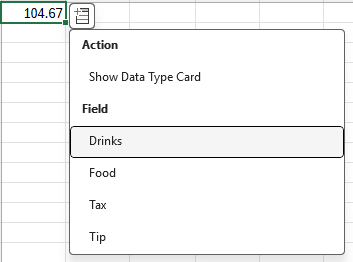
For the complete walkthrough, see Add properties to Excel basic cell values.
Entity values
An EntityCellValue can store text, nested data types, and arrays, and Excel can display that data in an entity card.
The following sample shows the full JSON schema for an entity value that represents an invoice. The entity includes display text plus properties for an image, a due date, and a status value.
const myEntity: Excel.EntityCellValue = {
    type: Excel.CellValueType.entity,
    text: "A llama",
    properties: {
        image: myImage,
        "start date": myDate,
        "quote": {
            type: Excel.CellValueType.string,
            basicValue: "I love llamas."
        }
    },
    basicType: Excel.RangeValueType.error, // A read-only property. Used as a fallback in incompatible scenarios.
    basicValue: "#VALUE!" // A read-only property. Used as a fallback in incompatible scenarios.
};
The basicType and basicValue properties define how calculations read an entity when the minimum compatibility requirements for data types aren't met. In that case, the entity displays as a #VALUE! error in the Excel UI.
Important
An entity value can define a referencedValues array that stores additional cell values. These values are referenced by index from within the entity's properties.
- The
referencedValuesarray is only supported on the root-level entity in a cell value tree. - Nested entities, which are entities used as property values inside another entity, must not define their own
referencedValues. - If a nested entity includes a
referencedValuesarray, the JavaScript Excel API throws aGeneralExceptionerror in add-in or script code, or Excel displays a #VALUE! error when a custom function produces the value.
To reference values from a nested entity, use ReferenceCellValue indices that point to the root entity's referencedValues array.
To explore entity data types, open Script Lab and run Data types: Create entity cards from data in a table. For deeper examples, see Data types: Entity values with references and Data types: Entity value attribution properties.
Linked entity cell values
LinkedEntityCellValue represents an entity that's connected to an external data source. Use linked entities when you need cards for large or frequently updated data sets and you don't want to load all details into the workbook at once.
The Stocks and Geography data domains available in the Excel UI are examples of linked entity cell values.
Linked entity cell values offer the following advantages over regular entity values.
- Linked entity cell values can nest, and Excel doesn't retrieve nested linked entities until the user or worksheet references them. This behavior helps reduce file size and improve workbook performance.
- Excel uses a cache so different cells can reference the same linked entity cell value. This also helps workbook performance.
For implementation details, see Create linked entity data types in Excel add-ins.
Web image values
Use WebImageCellValue when your add-in needs to store an image in a range or as part of an entity value. This type includes properties such as address, altText, and relatedImagesAddress.
The basicType and basicValue properties define how calculations read a web image when the minimum compatibility requirements for data types aren't met. In that case, the web image displays as a #VALUE! error in the Excel UI.
The following sample shows the full JSON schema for a web image.
const myImage: Excel.WebImageCellValue = {
    type: Excel.CellValueType.webImage,
    address: "https://bit.ly/2YGOwtw",
    basicType: Excel.RangeValueType.error,
    basicValue: "#VALUE!"
};
To try web image data types, open Script Lab and run Data types: Web images.
Improved error support
Data types APIs expose existing Excel UI errors as objects. This approach lets your add-in define or retrieve properties such as type, errorType, and errorSubType.
The following error objects have expanded support through data types.
- BlockedErrorCellValue
- BusyErrorCellValue
- CalcErrorCellValue
- ConnectErrorCellValue
- Div0ErrorCellValue
- FieldErrorCellValue
- GettingDataErrorCellValue
- NotAvailableErrorCellValue
- NameErrorCellValue
- NullErrorCellValue
- NumErrorCellValue
- RefErrorCellValue
- SpillErrorCellValue
- ValueErrorCellValue
Each error object can access an enum through errorSubType. That enum gives more detail about the specific error. For example, BlockedErrorCellValueSubType provides extra information about why a BlockedErrorCellValue occurred.
To learn more, open Script Lab and run Data types: Set error values.
Next steps
- Continue with Use cards with entity value data types to learn how entity cards present rich data in Excel.
- Build and sideload the Create and explore data types in Excel sample to experiment with creating and editing data types in a workbook.
See also
Collaborate with us on GitHub
The source for this content can be found on GitHub, where you can also create and review issues and pull requests. For more information, see our contributor guide.
Office Add-ins