Note
Access to this page requires authorization. You can try signing in or changing directories.
Access to this page requires authorization. You can try changing directories.
This article describes how to subscribe to events from a system owned or managed by a partner, such as SaaS or Enterprise Resource Planning (ERP) platforms.
Important
If you aren't familiar with the Partner Events feature, see Partner Events overview to understand the rationale of the steps in this article.
High-level steps
Follow these steps to receive events from a partner.
- Register the Event Grid resource provider with your Azure subscription.
- Authorize partner to create a partner topic in your resource group.
- Request partner to enable events flow to a partner topic.
- Activate partner topic so that your events start flowing to your partner topic.
- Subscribe to events.
Register the Event Grid resource provider
Unless you used Event Grid before, you need to register the Event Grid resource provider. If you used Event Grid before, skip to the next section.
In the Azure portal, follow these steps:
On the left menu, select Subscriptions.
Select the subscription you want to use for Event Grid from the subscription list.
On the Subscription page, under Settings on the left menu, select Resource providers.
Search for Microsoft.EventGrid, and confirm that the Status is NotRegistered.
Select Microsoft.EventGrid in the provider list.
On the command bar, select Register.

Refresh to make sure the status of Microsoft.EventGrid changed to Registered.
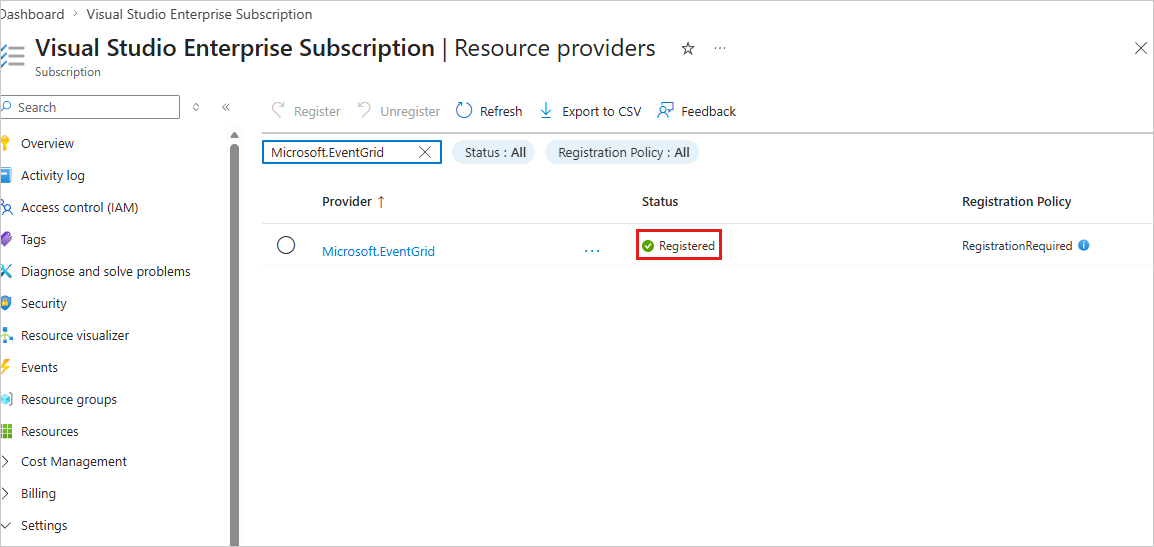

Authorize partner to create a partner topic
You must grant your consent to the partner to create partner topics in a resource group that you designate. This authorization has an expiration time. It's effective for the time period you specify between 1 to 365 days.
Important
For a greater security stance, specify the minimum expiration time that offers the partner enough time to configure your events to flow to Event Grid and to create your partner topic. Your partner won't be able to create resources (partner topics) in your Azure subscription after the authorization expiration time.
The following example shows how to create a partner configuration resource that contains the partner authorization. You identify the partner by providing either its partner registration ID or the partner name. You can get both from your partner, but only one is required. For your convenience, the following examples include a sample expiration time in UTC format.
Azure portal
Sign in to the Azure portal.
In the search bar at the top, enter Partner Configurations, and select Event Grid Partner Configurations under Services in the results.
On the Event Grid Partner Configurations page, select Create Event Grid partner configuration button on the page (or) select + Create on the command bar.

On the Create Partner Configuration page, follow these steps:
In the Project Details section, select the Azure subscription and the resource group where you want to allow the partner to create a partner topic.
In the Partner Authorizations section, specify a default expiration time for partner authorizations defined in this configuration.
To authorize a partner to create partner topics in the specified resource group, select the + Partner Authorization link.

On the Add partner authorization to create resources page, you see a list of verified partners. A verified partner is a partner whose identity Microsoft validated. Select a verified partner, and then select Add to give the partner the authorization to add a partner topic in your resource group. This authorization is effective up to the expiration time.
You also have an option to authorize a non-verified partner. Unless the partner is an entity that you know well, for example, an organization within your company, it's strongly encouraged that you work only with verified partners. If the partner isn't yet verified, encourage them to get verified by contacting the Event Grid team at askgrid@microsoft.com.
- To authorize a verified partner:
Select the partner from the list.
Specify authorization expiration time.
select Add.

- To authorize a nonverified partner, select Authorize non-verified partner, and follow these steps:
Enter the partner registration ID. You need to ask your partner for this ID.
Specify authorization expiration time.
Select Add.

Important
Your partner won't be able to create resources (partner topics) in your Azure subscription after the authorization expiration time.
- To authorize a verified partner:
Back on the Create Partner Configuration page, verify that the partner appears in the partner authorization list.
Select Review + create.

On the Review page, review all settings, and then select Create to create the partner registration.
Request partner to enable events flow to a partner topic
The following partners support events flow to a partner topic. Select a partner to submit a request.
Activate a partner topic
In the search bar of the Azure portal, search for and select Event Grid Partner Topics.
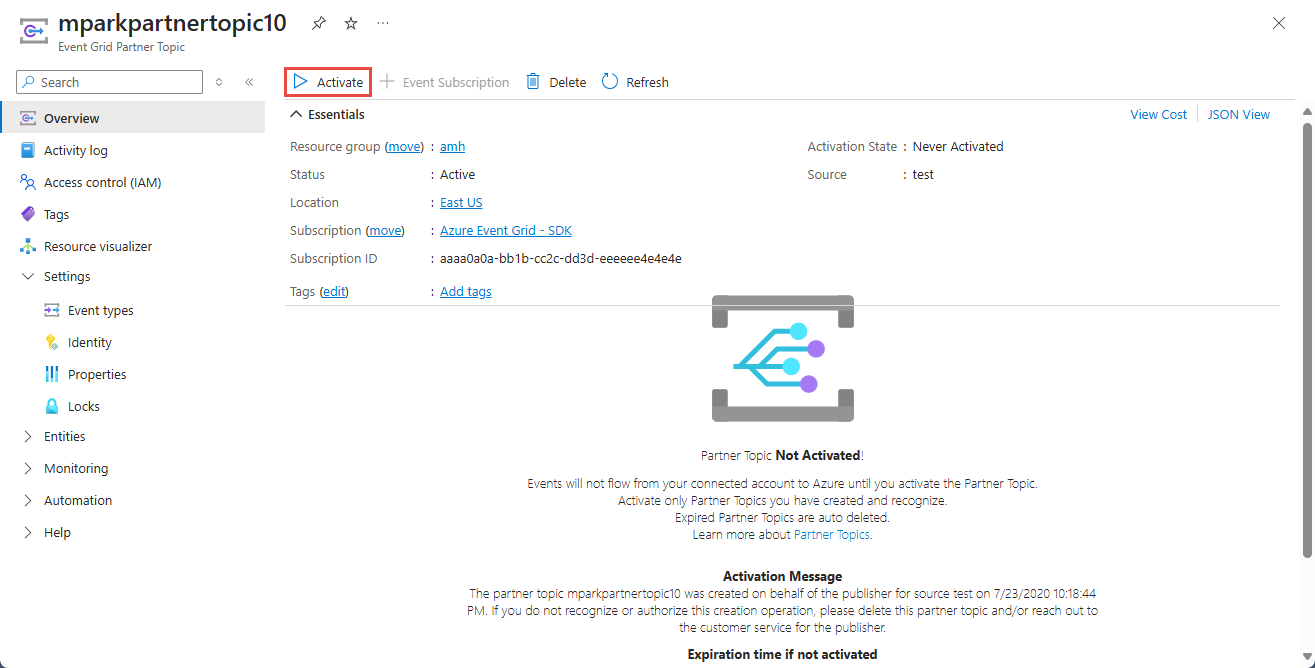
On the Event Grid Partner Topics page, select a partner topic with Activation State set to Never Activated.

Review the activate message, and select Activate on the page or on the command bar to activate the partner topic before the expiration time mentioned on the page.
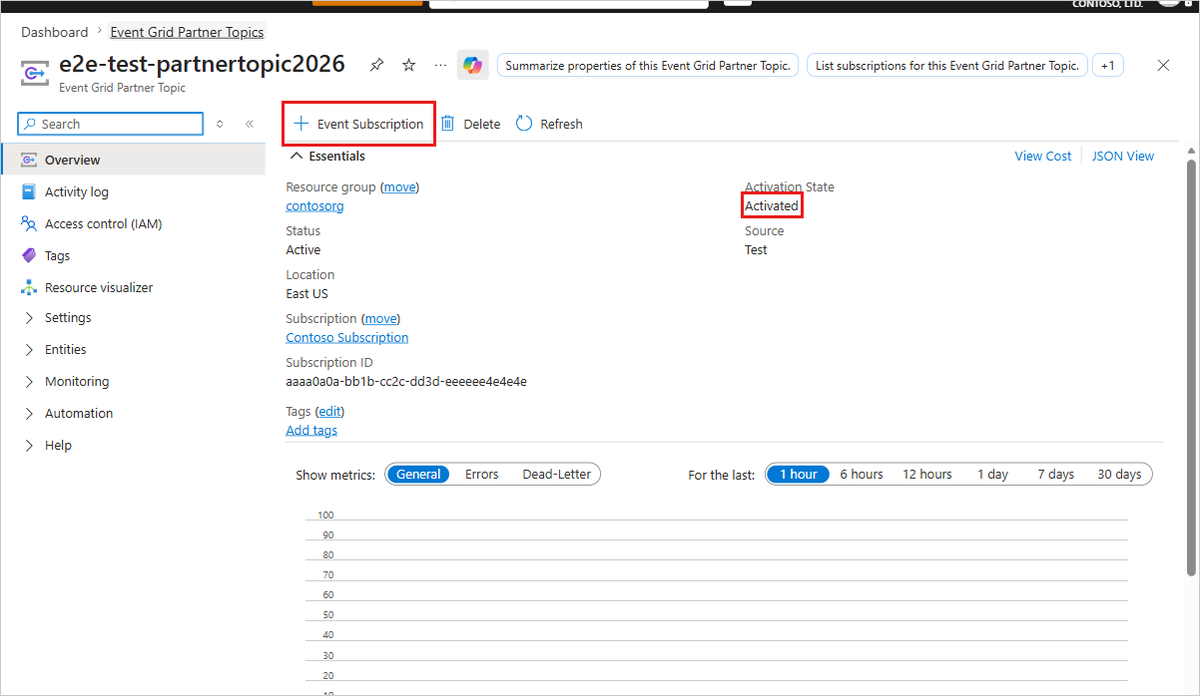
Confirm that the activation status is set to Activated and then create event subscriptions for the partner topic by selecting + Event Subscription on the command bar.

Subscribe to events
First, create an event handler that handles events from the partner. For example, create an event hub, Service Bus queue or topic, or an Azure function. Then, create an event subscription for the partner topic by using the event handler you created.
Create an event handler
To test your partner topic, you need an event handler. Go to your Azure subscription and create a service that's supported as an event handler such as an Azure Function. For an example, see the Event Grid Viewer sample that you can use as an event handler through webhooks.
Subscribe to the partner topic
Subscribing to the partner topic tells Event Grid where you want your partner events to be delivered.
In the Azure portal, in the search box, enter Event Grid Partner Topics, and then select Event Grid Partner Topics.
On the Event Grid Partner Topics page, select the partner topic in the list.

On the Event Grid Partner Topic page for the partner topic, select + Event Subscription on the command bar.

On the Create Event Subscription page, do the following steps:
Enter a name for the event subscription.
For Filter to Event Types, select types of events that your subscription receives.
For Endpoint Type, select an Azure service (Azure Function, Storage Queues, Event Hubs, Service Bus Queue, Service Bus Topic, or Hybrid Connections), or select webhook.
Select the Configure an endpoint link. This example uses an Azure Event Hubs destination.

On the Select Event Hub page, select configurations for the endpoint, and then select Confirm Selection.

Now on the Create Event Subscription page, select Create.


Related content
For more information about the Partner Events feature, see the following articles: