Note
Access to this page requires authorization. You can try signing in or changing directories.
Access to this page requires authorization. You can try changing directories.
A healthy application depends on the ability to resolve hostnames quickly and reliably. But what happens if DNS — the backbone of service discovery on the Internet — becomes unavailable?
In this tutorial, you’ll use Azure Chaos Studio to simulate a DNS outage by blocking DNS traffic (port 53) through a temporary Network Security Group (NSG) rule. This experiment helps you understand how your application behaves when it can’t resolve hostnames and allows you to validate fallback or retry strategies before a real incident occurs.
📘 What you’ll learn
- How to simulate a DNS outage using an NSG rule fault
- How to observe and measure application behavior during DNS failure
- How to improve resiliency with DNS caching, multiple resolvers, and retry policies
🧩 Prerequisites
Before you begin, make sure you have:
- An Azure subscription with permissions to create resources
- A virtual machine, VM scale set, or AKS cluster where your application is running
- Network Security Group (NSG) applied to your target subnet or NIC
- The target onboarded into Chaos Studio
🧠 Scenario overview
In this simulation, you’ll temporarily block all outbound DNS traffic (UDP port 53) from a target resource. This effectively mimics a DNS outage and lets you see how your service handles failed lookups, degraded dependency calls, and recovery once DNS connectivity is restored.
Example use case:
Your web app relies on external APIs, storage endpoints, and databases that require DNS name resolution. By blocking port 53, you can safely test how your app handles those failures and confirm whether your retry or caching logic works as expected.
Pre-requisite: Enable Chaos Studio on your Network Security Group (NSG)
Azure Chaos Studio can't inject faults against a resource until that resource is added to Chaos Studio. To add a resource to Chaos Studio, create a target and capabilities on the resource. Network security groups have only one target type (service-direct) and one capability (set rules). Other resources might have up to two target types. One target type is for service-direct faults. Another target type is for agent-based faults. Other resources might have many other capabilities.
Open the Azure portal.
Search for Chaos Studio in the search bar.
Select Targets and find your network security group resource.
Select the network security group resource and select Enable targets > Enable service-direct targets.
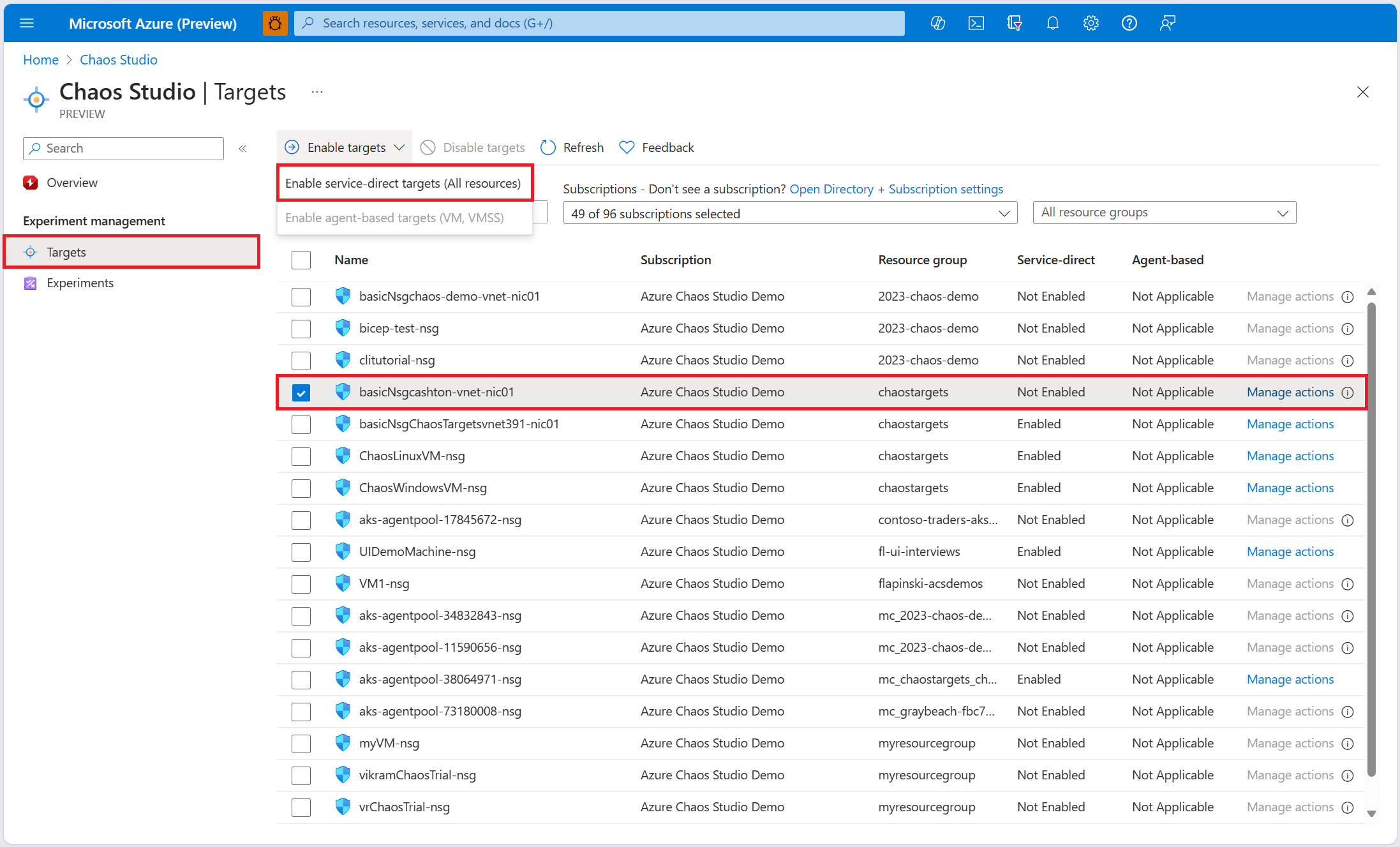
Select Review + Enable > Enable.
You've now successfully added your network security group to Chaos Studio.
🧪 Step 1: Create a DNS outage Experiment
- In the Azure portal, search for and select Chaos Studio.
- Select Experiments → + Create.
- Enter a name for your experiment, such as:
dns-outage-simulation - Choose a resource group and region for the experiment, then select Next: Experiment design.

⚙️ Step 2: Add the NSG rule fault
- In the Experiment design tab, select + Add action.
- Under Fault type, select Network Security Group rule fault.
- Configure the following parameters:
| Setting | Value |
|---|---|
| Action | Deny |
| Protocol | UDP |
| Port range | 53 |
| Direction | Outbound |
| Target NSG | Select the NSG attached to your target resource |
| Duration | 10 minutes (or as desired) |
This configuration denies all outbound UDP traffic on port 53 — effectively disabling DNS lookups for the target during the experiment.

▶️ Step 3: Run the Experiment
Review your configuration and select Start experiment.
As the experiment runs, monitor:
- Application logs and metrics in Azure Monitor
- DNS lookup failures in Application Insights
- Error patterns such as:
ENOTFOUNDNXDOMAINTimeoutException
When the experiment completes, Chaos Studio automatically removes the temporary NSG rule, restoring DNS access.
🔍 Step 4: Observe and analyze results
Evaluate how your application behaved during the outage:
- Did it fail gracefully or hang on lookups?
- Were retries handled correctly?
- Did latency increase for upstream dependencies?
- Was there any cascading impact on other components?
Use dashboards, metrics, and custom logs to visualize the impact and identify improvement areas.
🛠️ Step 5: Strengthen your DNS resiliency
Based on what you learned, consider implementing one or more of the following:
- Multiple resolvers – Configure fallback DNS servers (Azure DNS + public resolvers like 1.1.1.1 or 8.8.8.8).
- DNS last known good (LKG) plugin - This plugin helps lengthen the time your app can run based on the last known good DNS without needing to fetch the latest from the authoritative server.
- Local caching – Cache critical DNS entries in your app or VM resolver.
- Retry logic – Use exponential backoff and jitter when handling lookup failures.
- Private DNS zones – For internal dependencies, resolve names privately to avoid public resolver reliance.
- Health checks – Integrate DNS resolution checks in readiness/liveness probes.